How It Works
InstaJob automates your job search: finding openings, scoring how well they fit, sending applications, and tracking results in one dashboard. Start with the video below, then use the quick guide as a reminder.
Watch once, use all of InstaJob
This video takes you from account setup to applications sent automatically and tracked in your dashboard. Watch it to the end before turning on Auto Apply so you do not miss a setting.
Jump to a section
After watching, you can:
- Set up your profile, Gmail, and preferences correctly, since they decide the quality of your applications
- Run Scout Now and pick openings by their match label
- Turn on Mail Auto Apply and the InstaApply extension, then track each application up to the interview stage
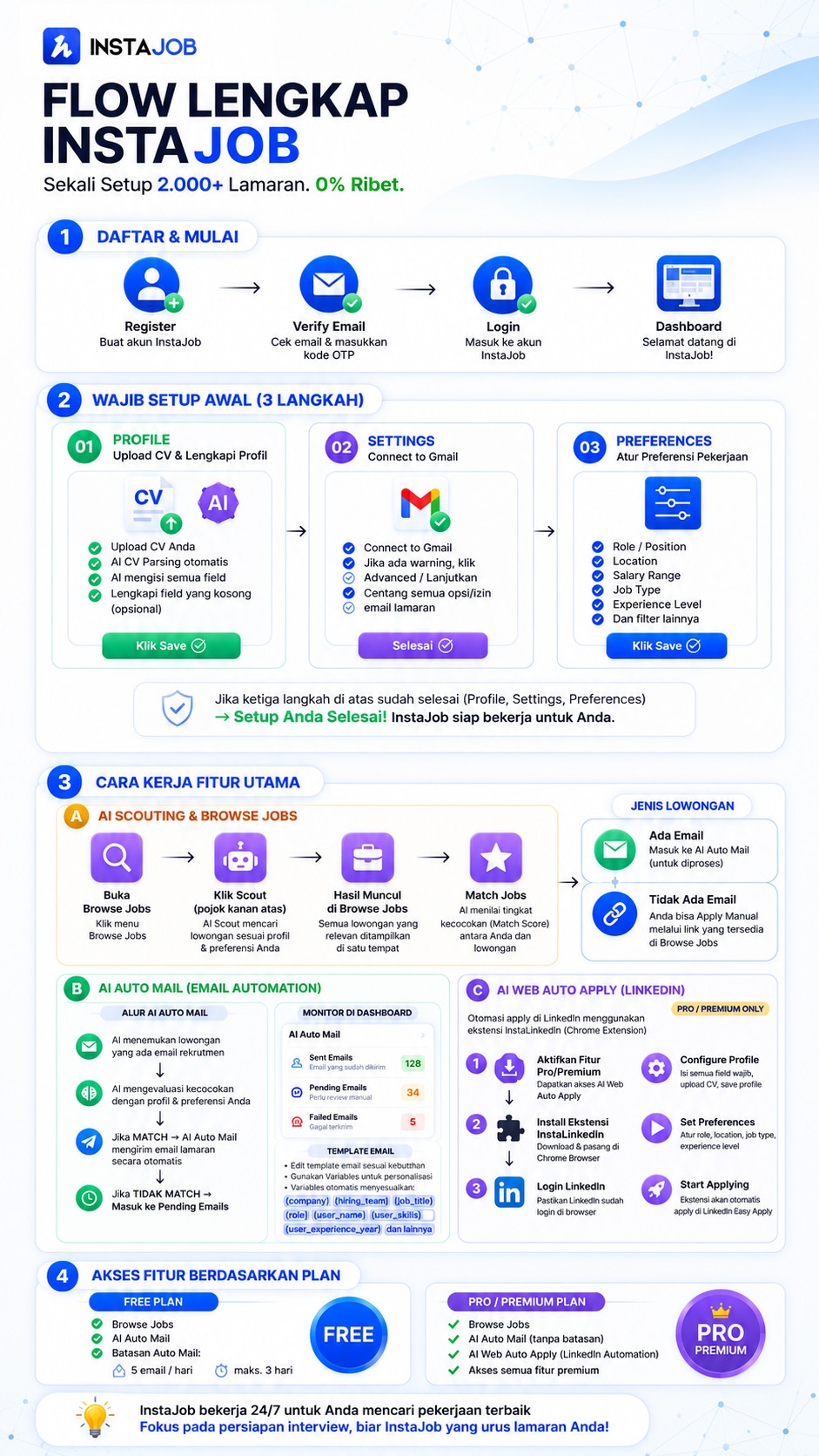
The Complete InstaJob Flow
This diagram summarizes your entire journey: from signing up to applications sent automatically.
Quick Guide
Same order as the chapters in the video. Tap the time on a step to play that part.
1. Create an account
Sign up at instajob.id with an email you actually use, enter the OTP code sent to your inbox, then log in. The main menu is at the top, and the avatar menu in the top right holds Profile, Settings, and How It Works.
2. Initial setup (required)
The only part that takes your effort. Do it right once, because the automation works from the data you enter here.
3. Scout & job matching
In Browse Jobs, click Scout Now. InstaJob searches JobStreet, Kalibrr, LinkedIn, Glints, and hiring posts on social media, in 5 to 30 minutes. On Pro, scouting runs up to 6 times a day: 3 automatic runs and 3 through Scout Now. During the free period you get 1 a day. Each opening gets a label: Very good match, Good match, or Relevant. Openings that list an email can go straight to Mail Auto Apply; for the rest, apply through the original link.
4. Mail Auto Apply
On the Dashboard, click Mail Auto Apply. Make sure profile, Gmail, and template are checked, then switch it on. Good matches are sent from your own Gmail in your name; partial matches go to Pending Applications for you to decide. The limit is 100 emails a day, but raise it gradually with the warm-up recommendation so Gmail does not flag you as spam. Pick the Formal or Fresh Graduate template for local openings, Professional or Short for English ones. The email is written from your profile and your CV is attached automatically.
5. Web Auto ApplyPRO/PREMIUM
For openings you apply to with a button rather than by email. On the Dashboard, click Web Auto Apply and install the InstaApply extension from the Chrome Web Store. Log in with your InstaJob account, fill in the Configure tab (personal details, skills, CV, experience, salary), and make sure you are logged in to LinkedIn, Glints, and JobStreet in the same Chrome. On the Home tab, pick platforms, keywords, and location, then click Start Auto Apply. Every result is logged in the History tab and synced to your dashboard.
Install the InstaApply extension →6. Track applications
The Dashboard shows a summary: sent today, the next scout run, and applications waiting or accepted. Details are in Applications: a yellow banner flags applications with no reply for more than 7 days, and the Kanban view lets you move cards from Applied to Offer. Need a recap? Export to Excel.
InstaJob handles the applying, but it cannot guarantee you get hired. Your part is preparing for the interview.